macOS Mail
“Mail” is a full-featured email client included with macOS. It includes the ability to search for emails, and to automatically append signatures to outgoing emails. Mail integrates with Contacts, Calendar, Maps, and other macOS apps.
Set Up Your Email Account In macOS
-
In Mail, go to Preferences.
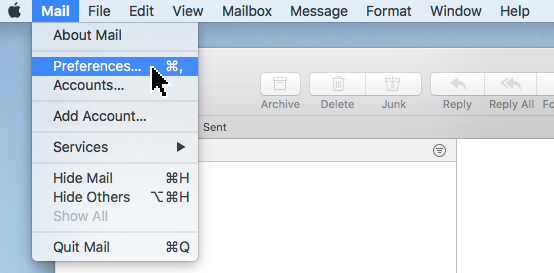
Mail Preferences -
Select the Accounts tab, and click the + at the bottom of the list of accounts.
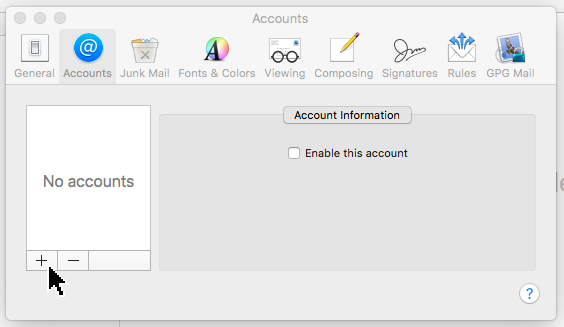
Add Account -
At the bottom of the list of email account types, click Other.
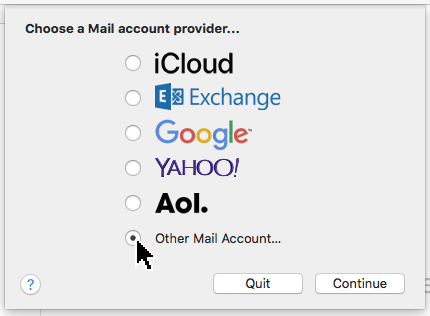
Account Type: Other -
Enter your basic account information:
Name Value Name Your full name, e.g. Sarah Jones Email Address <your-username>@elemental.software email address, e.g. sarah@elemental.software Password Your Elemental Software account password 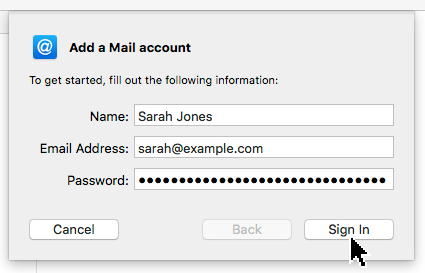
Enter Your Account Information Click Sign In to continue.
-
Fill in the server information:
Name Value Email Address <your-username>@elemental.software email address (same as above) User Name (same as Email Address) Password Your Elemental Software account password (same as above) Account Type IMAP Incoming Mail Server mail.elemental.softwareOutgoing Mail Server smtp.elemental.software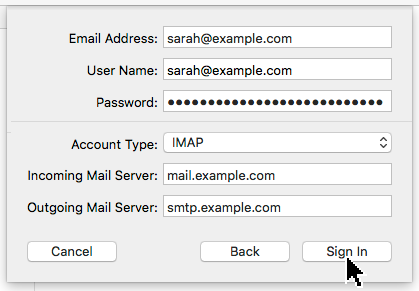
Mail Server Settings Click Sign In to continue.
-
Finally, ensure Mail is selected, and click Done.
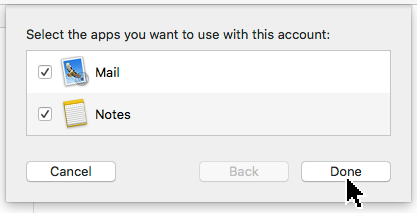
Choose Apps The Apple Notes app stores notes on the email server and does not interact with the Cloud server Notes app.
Help & Support
Additional information can be found at Apple’s Mail Users Guide website.